
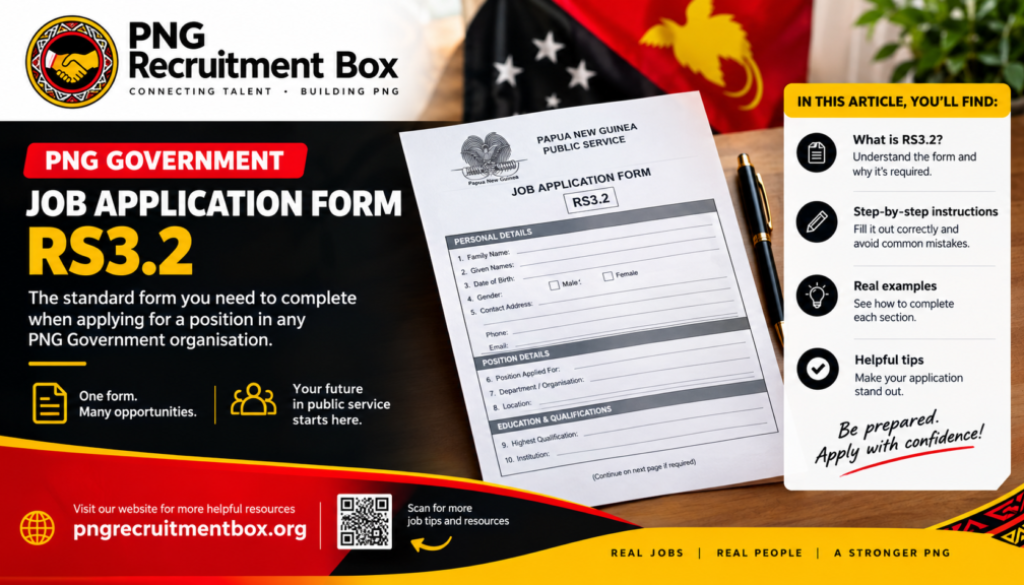
What is RS3.2 form and why do you need to fill it?
RS3.2 is the document code given to the job application form that any one person will need to fill out when applying for a position within any government organization. When you are applying for any position within the Papua New Guinea Government system, you will be required to fill out this form. At first glance, it may be daunting for you that is why we’ve developed these instructions with accompanying examples to help you fill it out correctly.
Before you start filling out the forms, you must have these ready:
- The Job Description of the position you are applying for.
- Your personal details including your parents, spouse and children’s details
RS3.2 Postion
The first section is the Position you are applying for. This should come from the job description or the job advertisement. In a job advertisement you will find it usually in the first column of the printed table of job vacancies.

Then you fill out your personal details

Educational Qualifications
Followed by your educational and other qualifications information on Page 2 of RS3.2

Work Experience
Then you’ll be asked to fill out your work experience on Page 3 of the RS3.2 form

Relatives and Criminal Offences
It continues on to Page 4 of the RS3.2 form and joins with details of your close relatives including any criminal offense you may have committed or have been convicted of.

Referees
At the end of Page 4 of the RS3.2 Form you will be required to put in any referees you want them to get in touch with. You have space to include 4.

On the 5th and last page of the RS 3.2 Form you’ll be asked to specify where you saw the job advertised on. You’re also advised that if you provide or deliberately ommit or withheld any information in your application, you may lose your job without compensation or repatriation.
Sign and Send
The last part is for your to put your signature and you’re done.

- Open the PDF File:
- Ensure you have a PDF reader installed, such as Adobe Acrobat Reader.
- Open the PDF file you need to fill out.
- Select the Fill & Sign Tool:
- In Adobe Acrobat Reader, click on the “Tools” tab.
- Select “Fill & Sign” from the list of tools.
- Add Text:
- Click on the area where you need to add text.
- A text box will appear; type in the required information.
- Adjust the size and position of the text box if necessary.
- Add Checkmarks or Crosses:
- For checkboxes, click on the checkbox to add a checkmark.
- If you need to add a cross, select the “X” icon from the Fill & Sign toolbar and click on the checkbox.
- Add Signatures:
- Click on the “Sign” icon in the Fill & Sign toolbar.
- Choose “Add Signature” or “Add Initials”.
- You can type, draw, or upload an image of your signature.
- Place the signature in the appropriate location on the PDF.
- Save the Filled PDF:
- Once you have filled out all the necessary fields, save the document.
- Click on “File” and then “Save As” to save the filled PDF to your desired location.
If you have any specific questions or need further assistance with a particular step, feel free to ask! You can reach us directly through email admin@pngrecruitmentbox.org
There are five pages that you will need to fill out the information on.
Discover more from PNG Recruitment Box
Subscribe to get the latest posts sent to your email.


